Sign in
  • Contact Us
  • Home
  • Android
  • Downloads
  • Featured
  • How To
    • TWRP Recovery
  • Lifestyle
    • Home Improvement
    • Travel
Sign in
Welcome!Log into your account
Forgot your password?
Password recovery
Recover your password
Search
  • Sign in / Join
Sign in
Welcome! Log into your account
Forgot your password? Get help
Password recovery
Recover your password
A password will be e-mailed to you.
Ericcastro
  • Contact Us
  • Home
  • Android
  • Downloads
  • Featured
  • How To
    • TWRP Recovery
  • Lifestyle
    • Home Improvement
    • Travel
Home Tips How to Retrieve Lost Photos and Images from Different Devices: a Comprehensive...
  • Tips

How to Retrieve Lost Photos and Images from Different Devices: a Comprehensive Guide

By
mindmingles
-
March 7, 2022
0
57
Facebook
Twitter
Pinterest
WhatsApp
    Retrieve Lost Photos

    It’s a common struggle for users to have their data lost. It mostly relates to the photos or images. What should you do if you accidentally delete or lose the image? Panicking isn’t a good option. You have to follow a clear guide and use effective tools to retrieve the photos. This guide will show you how to recover photos from Android SD card and find the lost images with ease if they were lost. Let’s get started with the working steps for users and for Retrieve Lost Photos . 

    How to Retrieve Lost Photos : An Easy Guide 

    There are different ways you can lose the image. Sometimes it’s an accidental step. In other cases, you may delete the content on purpose but need to get it back to your phone. What steps should you take to retrieve the photos without the help of other experts? This is not a complicated task. 

    Look For Them in the Device 

    Whatever device you use, there’s always an option to find the recently deleted images. When you open the gallery, you will see a whole lot of photos. Go to the settings and check if you can restore the previously deleted content. This might be a good choice if you deal with a phone. When you work with the computer, you can check the Trash Bin. This is the easiest way to have your photos retrieved from your device. What should you do if you can’t deal with this option or it turns out to be useless?  

    Try a Photo Recovery Software 

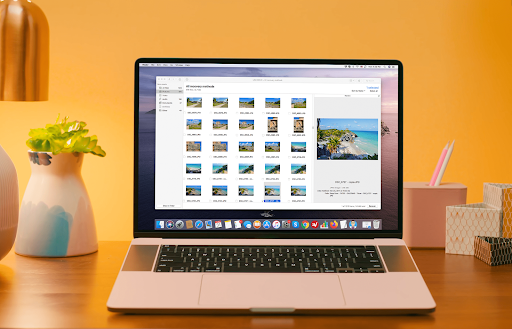
    If you have a more sophisticated situation and can’t easily recover the photos from the device, it’s better to download the software to recover JPEG files and other types of content. This must be the first step if you need to retrieve deleted images and no other way can’t work. How should you use the data recovery tool? There’s a step-by-step guide that could be used for any type of device. Let’s check the steps and help you recover permanently deleted photos with little effort. 

    • The first step is the easiest one. What you have to do is to choose and download the application. There are lots of high-quality recovery tools on the web. You can choose the most reviewed and used one to receive the best results fast. 
    • Once you have your app downloaded, you can launch the tool and open it. You will see the interface. If you work with the app for the first time, it’s better to spend a couple of minutes getting acquainted with the interface. It will help you cope with the task with no problems. 
    • Now you need to search for lost data. This is an automatic process. You click the necessary button and receive the results. You should check what you see on the screen and review if you notice anything familiar with your initial request. 
    • When you notice the files you need to recover, you should click on them and choose the further storage option not to lose them again. A good tip would be not to use the source because the operation may fail. 
    • When you click on the Recover button, your files must be easily returned to the computer. 

    Video Tutorial for Mac Users

    <iframe width=”560″ height=”315″ src=”https://www.youtube.com/embed/DABJheq922s” title=”YouTube video player” frameborder=”0″ allow=”accelerometer; autoplay; clipboard-write; encrypted-media; gyroscope; picture-in-picture” allowfullscreen></iframe>

    Do you find this guide simple? If you can’t manage the data recovery with ease, you should install the data recovery tool and try to follow the steps. It’s an easy way even for beginners. By following the procedure, you will retrieve the photos and have them on your device again with no corruption. 


    • TAGS
    • google photos app
    • google photos login
    Facebook
    Twitter
    Pinterest
    WhatsApp
      Previous articleAppBlock Premium Apk Download Latest Version for Android [2022]
      Next articleTop 7 Best Screen Recorder Chrome Extension to Record Screen in 2022
      mindmingles
      mindmingles
      Hi people, I am a 28 year old girl and you can smell the freshness and compassion from my writings. I love to spend time alone with nature and learn my work from its goodness. I believe what you experience is the shadow of what you write for your readers.

      RELATED ARTICLESMORE FROM AUTHOR

      Sim Racing Handbrakes And The Power They Have

      Is Sim Racing Right For You? Here Are Some Factors To Consider

      Exhausted IT Team? 5 Solutions

      Recent Posts

      • The Long-Term Benefits of Installing Paint Protection Film on Your Vehicle October 27, 2025
      • Common Mistakes to Avoid When Installing Auto Tint April 27, 2025
      • Silent Water Damage The Hidden Crisis Destroying Singapore Homes February 1, 2025
      • Video Capture Software Development in .NET December 21, 2024
      • Transforming Document Management: The Power of Document Scanner SDKs September 19, 2024
      • Can Car Window Tinting effectively Block UV Rays? May 5, 2024

      EDITOR PICKS

      ecosystem

      How is technology supporting the regeneration of our ecosystem?

      July 3, 2023
      Hide Navigation Bar and Status Bar on Samsung Galaxy S9 and S9 Plus , Samsung Galaxy S9, Samsung Galaxy S9 Plus, How to Hide Navigation Bar on Samsung Galaxy S9, How to Hide Navigation Bar on Samsung Galaxy S9 Plus

      Hide Navigation Bar and Status Bar(Permanent Immersive Mode) on Samsung Galaxy...

      March 29, 2018
      How to Get Android P Features on Android device on Android 8.1 Oreo , Android P Features, Android 8.1 Oreo, Android P, Android P Features on Android device on Android 8.1 Oreo

      How to Get Android P Features running on Android device...

      March 29, 2018

      POPULAR POSTS

      Windows 10 Highly Compressed 10mb ISO Free Direct Download

      October 16, 2017
      Survey Killer app

      The Ultimate Survey Killer app for Bypass & remove online Survey

      October 6, 2017

      How to Unlock Bootloader without PC On Android [2022]

      January 29, 2022

      POPULAR CATEGORY

      • How To712
      • Root461
      • TWRP Recovery461
      • Apps200
      • Custom Roms146
      • Tech129
      • Lineage OS 15.199
      • Tips97
      • Android95
      ABOUT US
      FOLLOW US
      • Contact Us
      © © Copyright 2026 || All Rights Reserved || Powered By ericcastro.biz || Mail To Us : GuestPost@GeniusUpdates.com